
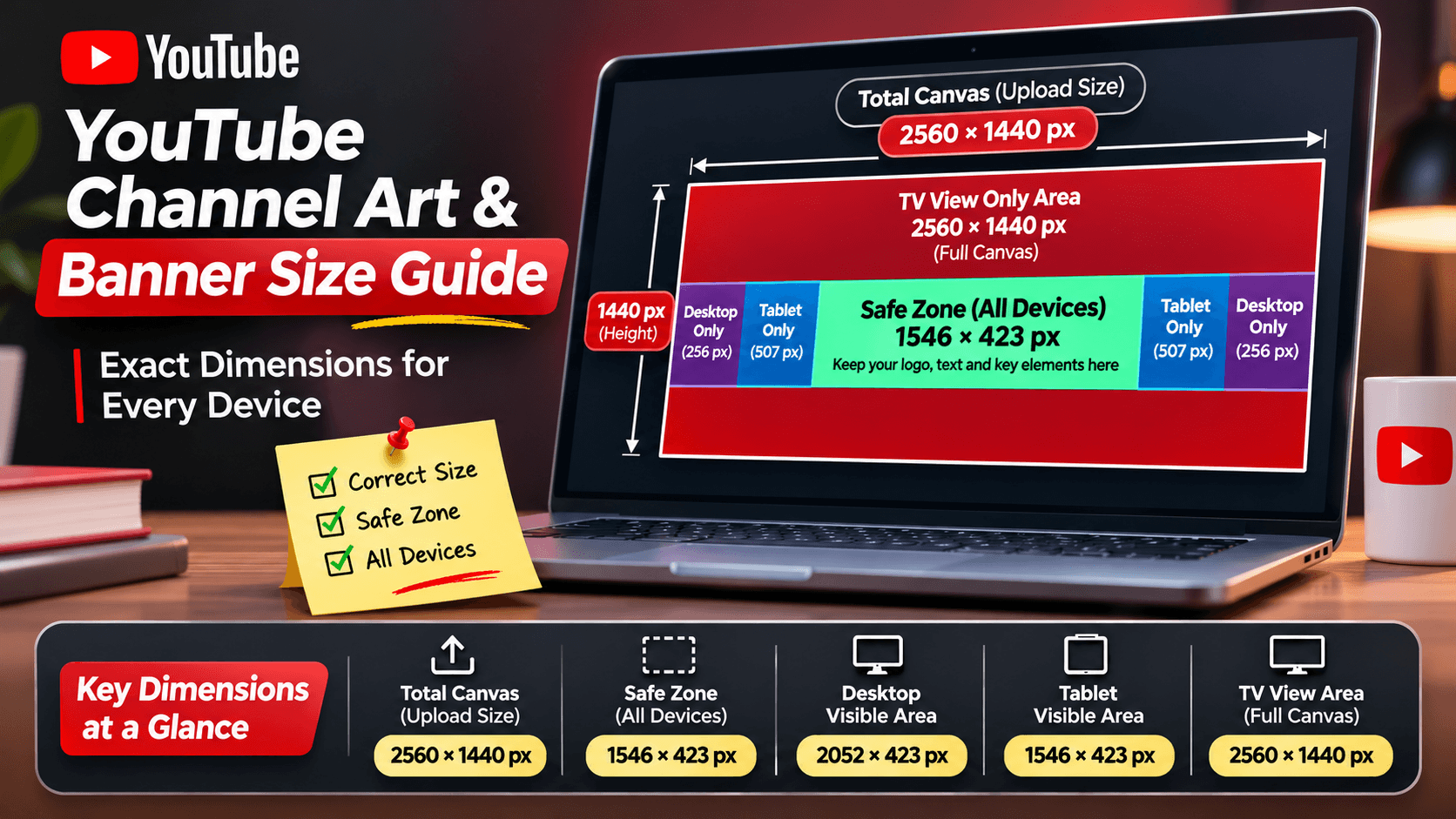
YouTube Channel Art and Banner Size Guide (Exact Dimensions for Every Device)
The recommended YouTube banner size is 2560 x 1440 pixels at a 16:9 aspect ratio, with a minimum upload dimension of 2048 x 1152 pixels and a file size of 6 MB or smaller. Keep all text and logos inside the central safe area so nothing is cropped on smaller screens.
Getting the YouTube banner size right is a five-minute problem that causes months of irritation if you get it wrong. Upload something too small and it blurs on television screens; place your channel name too far from the centre and it disappears on phones. Here are the exact numbers, taken from YouTube's own specifications.
What Size Should a YouTube Banner Be?
Three numbers cover it. Design at the recommended size, stay above the minimum, and keep the file under the limit.
| Specification | Value | Notes |
|---|---|---|
| Recommended upload size | 2560 x 1440 px | YouTube's recommendation, especially for television displays |
| Minimum upload size | 2048 x 1152 px | Below this, YouTube will not accept the image |
| Aspect ratio | 16:9 | Both sizes above use this ratio |
| Safe area for text and logos | 1235 x 338 px | YouTube's figure, stated at the minimum upload dimension — see the safe-zone section below |
| Maximum file size | 6 MB | Applies to the banner image |
| Embellishments | Not permitted | YouTube specifies no added shadows, borders or frames |
Source: YouTube's official channel branding documentation. Specifications change occasionally — confirm on YouTube's Help Center if precision matters for your project.
What Is the Safe Zone for YouTube Channel Art?
The safe zone is the central portion of your banner that stays visible on every device. Everything outside it may be cropped depending on the screen — which is why channel names and logos placed near the edges vanish on phones.
There is a wrinkle here that causes a lot of confusion online, and it is worth understanding rather than memorising. YouTube states the safe area as 1235 x 338 pixels at the minimum upload dimension of 2048 x 1152. If you design at the recommended 2560 x 1440 instead, the same proportion of the canvas works out to roughly 1546 x 423 pixels. Both figures describe the same central region — they are simply measured on differently sized canvases.
The practical version: design your full banner at 2560 x 1440, then keep every piece of text, every logo, and anything you would be upset to lose within the central band of roughly 1546 x 423 pixels. Treat the space outside that band as background only — colour, texture, imagery that can be cropped without anyone noticing.
Does Channel Art Look Different on TV vs. Mobile?
Yes, substantially — and this is the reason the safe zone exists. You upload one image, and YouTube crops it differently for each display. Widely reported display dimensions across devices are:
| Device | Approximate display size | What this means |
|---|---|---|
| Television | 2560 x 1440 px | The whole image is shown — this is why upload resolution matters |
| Desktop | 2560 x 423 px | A wide, shallow strip from the centre |
| Tablet | 1855 x 423 px | Narrower than desktop, same height |
| Mobile | 1546 x 423 px | The narrowest crop — and where most designs break |
These per-device display figures are widely reported and consistent across sources, but are not stated on the Help page itself. YouTube confirms only that the same banner is used across computer, mobile and TV displays and shows differently depending on the device.
Notice the pattern: television shows the full canvas, while every other device shows a horizontal strip through the middle. Design for the strip, decorate the rest.
What's the YouTube Profile Picture Size?
Your profile picture, also called the channel icon, is a separate image with separate specifications. YouTube states that it renders at 98 x 98 pixels, accepts JPG, GIF, BMP or PNG files with no animated GIFs, and that the image should not exceed 15 MB.
The common practical recommendation is to upload a square image at 800 x 800 pixels. That is not a YouTube-stated requirement, but the reasoning is sound: uploading well above the render size keeps the image sharp wherever it appears, from a channel page down to a comment thread. Note that YouTube displays it as a circle, so anything in the corners of your square will be cut off — keep your face or logo centred with a little breathing room.
A Pre-Upload Checklist
1. Canvas at 2560 x 1440 px, 16:9. Start here rather than resizing later.
2. Everything important inside the central safe band. Channel name, logo, tagline, any dates or handles.
3. No borders, frames or drop shadows on the file itself. YouTube specifies against these.
4. File under 6 MB. Compress if needed — a well-compressed JPG at this size rarely shows visible loss.
5. Check text legibility at small scale. Shrink your design to roughly thumbnail size and see whether the words still read. If not, the type is too small or too thin.
6. Preview on a phone after uploading. The single most useful step, and the one people skip. Open your own channel on a phone and confirm nothing important is cut.
How to Upload Your Banner
Once the file is ready, the upload itself takes under a minute. On a computer, sign in to YouTube Studio, open Customisation from the left menu, then the Branding tab. Under the banner image section, choose your file, adjust the crop preview if offered, and publish.
The same section holds your profile picture, so it is worth updating both in one sitting if you are refreshing your channel. Changes can take a few minutes to appear everywhere, and clearing a cached page or checking on a different device usually resolves an apparent delay rather than a re-upload.
One thing that surprises people: you upload a single banner file and YouTube handles every device from it. There is no separate mobile version to prepare, which is precisely why the safe zone carries so much weight — that one file has to survive every crop.
Design It Once, Reuse It Forever
Because the specs rarely change, a banner template is one of the few pieces of channel setup that genuinely pays off permanently. Build a file at 2560 x 1440 with the safe band marked as a guide layer, and every future refresh becomes an edit rather than a rebuild.
Two habits make that template last. Keep the editable source file, not just the exported image — future you will want to change the text without recreating the layout. And keep the design free of anything time-bound, so a refresh is a choice rather than a chore.
Common Mistakes
- Text or logo cropped on mobile. By far the most common. The design looks balanced on a desktop editor, then loses half the channel name on phones. The safe zone exists precisely to prevent this.
- Uploading at the minimum size. 2048 x 1152 is accepted, but television displays show the full canvas, so a minimum-size upload can look soft on a large screen. Design at the recommended size instead.
- Cramming the full canvas with detail. Most devices only ever show the central strip, so detail placed at the edges is invisible to almost everyone. Treat the outer regions as background.
- Adding borders or frames to the file. YouTube specifies against embellishments, and they crop badly across devices anyway.
- Dated information in the design. Upload schedules, series names and event dates all age. Anything you would have to update is a maintenance cost you are choosing to take on.
Keep It Consistent With Your Thumbnails
One last thing worth a moment: your banner and your thumbnails are seen together on your channel page, so shared colours and typefaces make a channel look considered rather than assembled. If you build thumbnails from a repeatable template — a Thumbnail Maker is one way to do that — matching the banner to it takes almost no extra effort.
For everything beyond the specifications — what to actually put on a banner, and the wider setup of a new channel — see How to Start a YouTube Channel. This page is here for the numbers.